Hybrid Gaming Work Chair Setup for Pro Streams & Calls
By Mateo Li • 2nd Jun
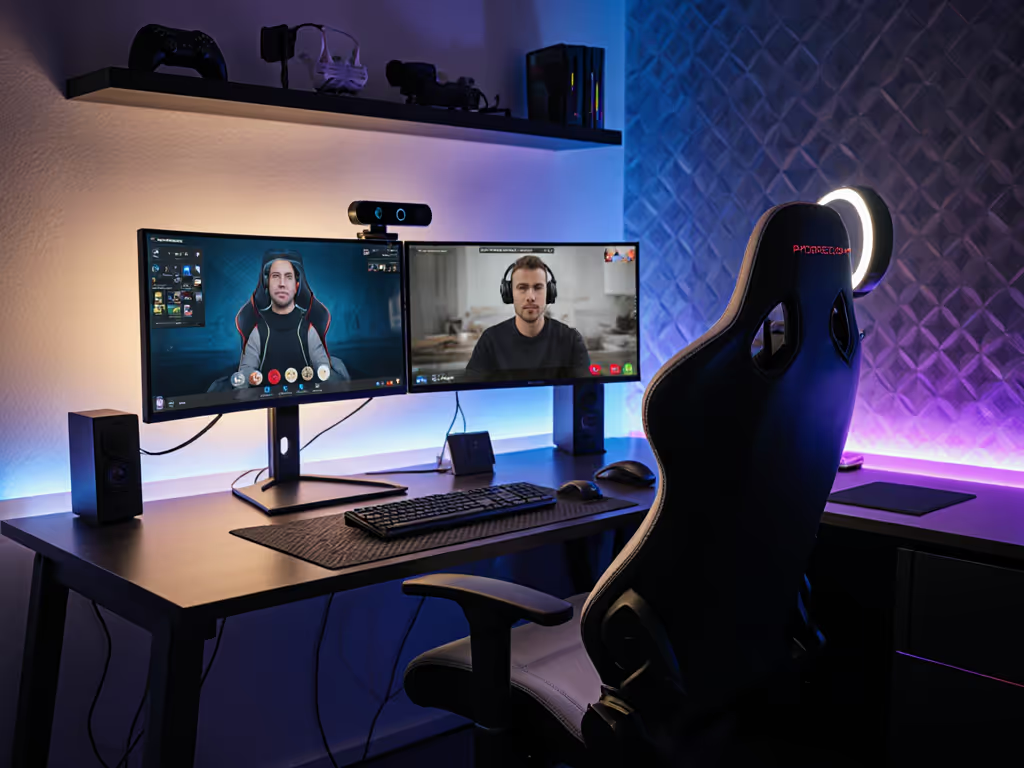
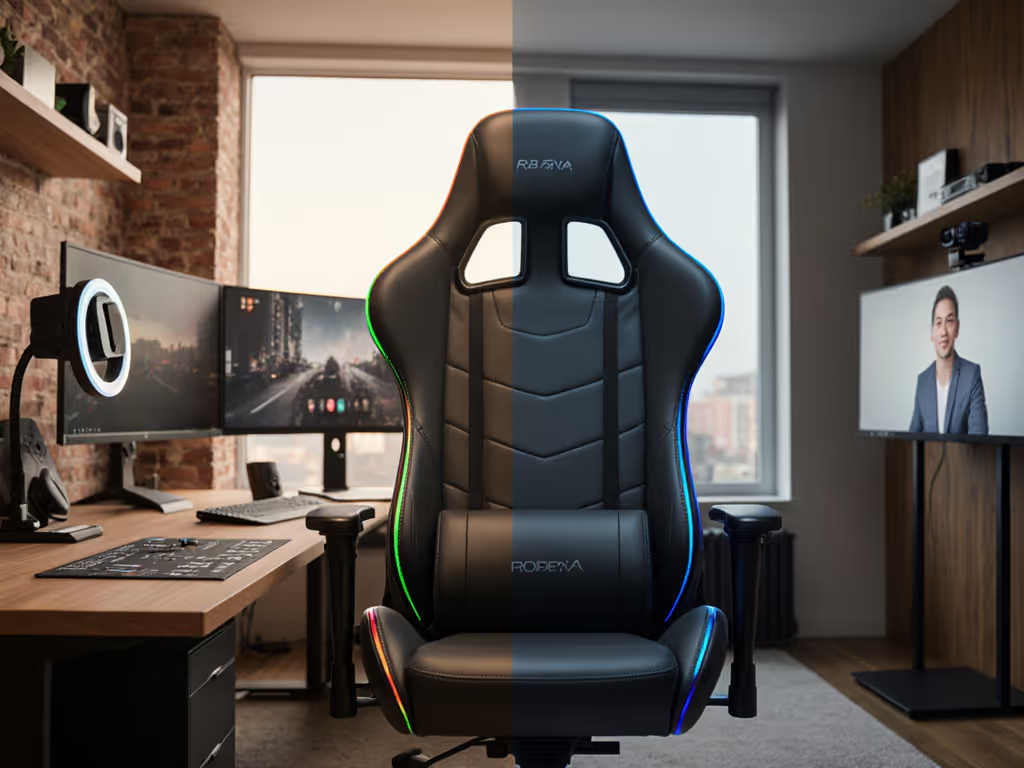
If you want a hybrid gaming work chair setup that can carry you from sweaty ranked lobbies to client calls without back pain or awkward camera angles, you need more than "the best chair for video gaming". You need a repeatable posture preset that supports a real streamer to professional transition every single day.
This is a step-by-step build: we'll turn your existing chair and desk into a stable, dual-purpose rig that looks pro on camera and keeps your mechanics consistent deep into overtime.
Stability is speed when posture and hardware lock in.
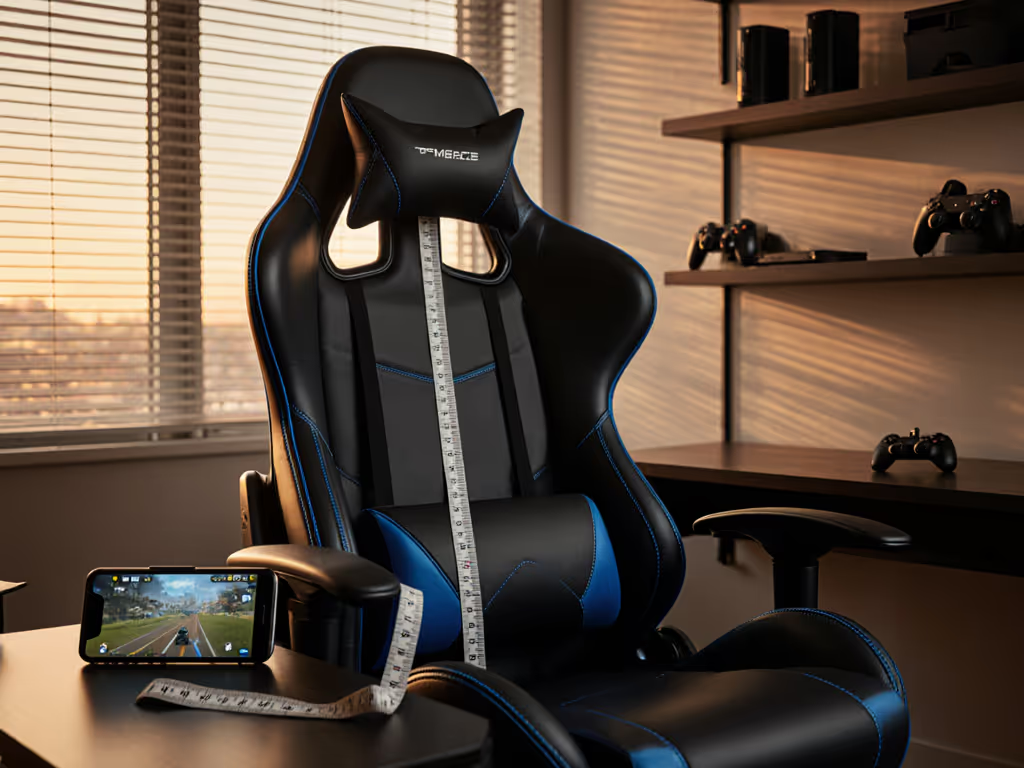
Step 1: Lock in your reference measurements (5 minutes)
Before you touch a lever, you need numbers. Hybrid workspace ergonomics only makes sense when it matches your body.
Grab a tape measure and note these (barefoot, in cm or inches):
- Stature: Floor to top of head.
- Lower leg length: Floor to underside of knee (while sitting on a firm surface, knees at roughly 90°).
- Thigh length (seat depth): From lower back (against a wall) to the back of your knee.
- Shoulder breadth: Bony points of each shoulder, straight across.
- Desk height: Floor to top of desk.
These numbers will guide every adjustment.
Targets for a neutral baseline posture:
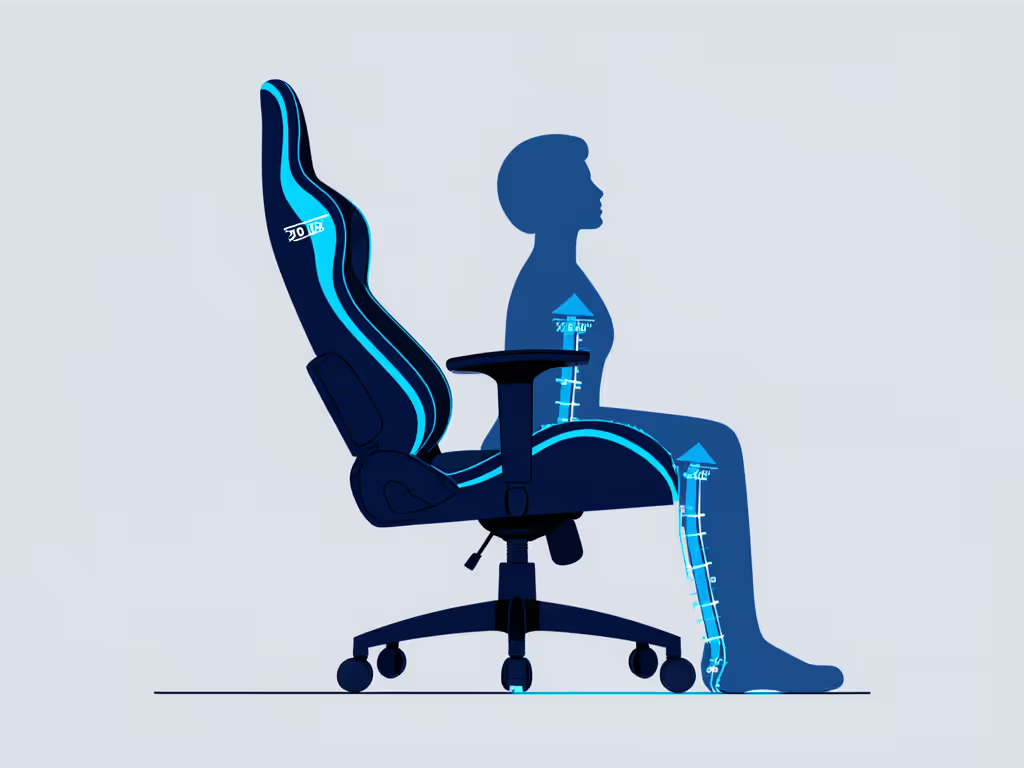
- Hips, knees, and ankles each in the 90-110° range.
- Elbows at 90-110°, forearms roughly parallel to the floor when using mouse/keyboard.
- Wrists in a neutral line with forearms (no sharp extension or flexion).
This is your professional gaming posture template: not rigid, but neutral enough that your body doesn't have to fight your setup.
Step 2: Set seat height to match your desk and peripherals
Most people start by raising or lowering the armrests. Don't. Start with seat height.
2.1 Find your chair height range
- Sit all the way back in the chair.
- Raise or lower the seat until:
- Feet are flat on the floor.
- Knees are at 90-110°.
- There is no sharp pressure at the back of your knees.
If your desk is very high and you can't keep your feet flat while hitting elbow 90-110° at the desk, use a footrest (even a sturdy box) instead of over-flexing your shoulders.
2.2 Match elbows to desk edge
Slide in as if ready to play:
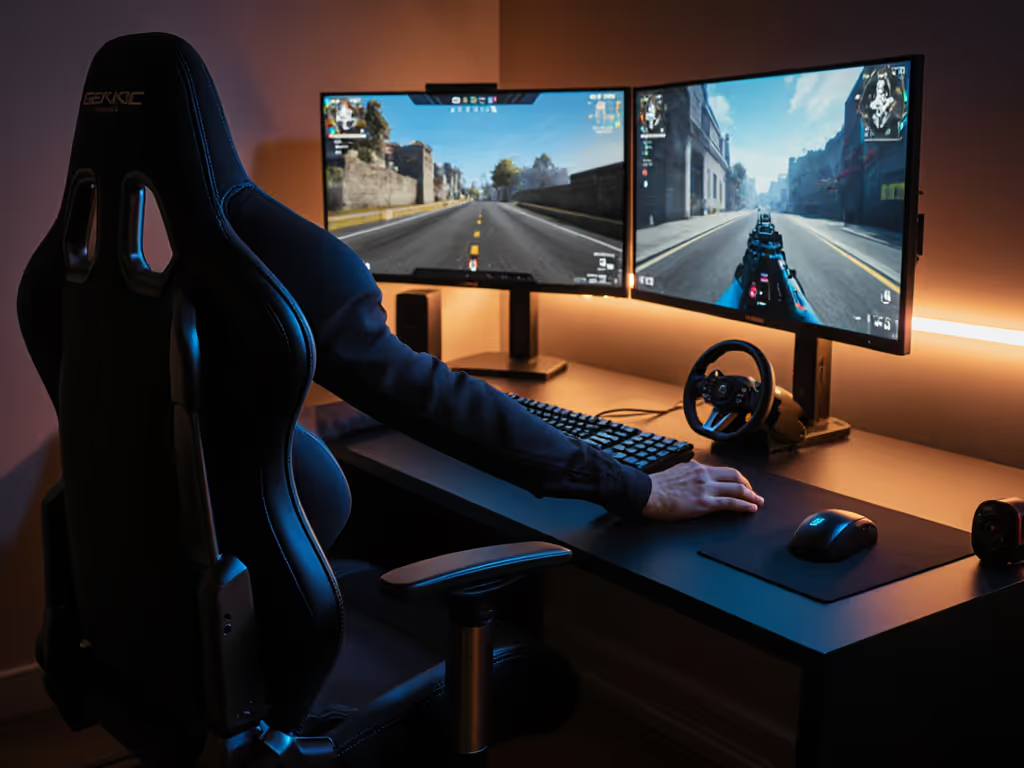
- Place hands on mouse and keyboard.
- Raise or lower the seat (not armrests yet) so that elbows land in that 90-110° window without hunching shoulders.
- If shoulders feel "shrugged", your desk is effectively too high; you either need a taller cylinder, a lower desk, or a footrest arrangement that keeps angles neutral.
If your shoulders are elevated before the round even starts, you're pre-loading tension that shows up as jitter later.
This is where a lot of "gaming gaming chair" marketing falls apart: the cylinder height doesn't match a typical 28-30" desk, so users end up compromising posture to reach the desk.
Step 3: Dial in seat depth and backrest for all-day support
Now that you've nailed seat height, fix seat depth and backrest so your spine can chill while you grind.
3.1 Seat depth (thigh support)
- Sit all the way back.
- Adjust seat pan (if your chair allows) so there is a 2-3 finger gap between the front edge and the back of your knee. For exact measuring steps, follow our Seat Depth Measurement Guide.
- If the seat is not adjustable and too long, you'll need to:
- Use a lumbar cushion to effectively shorten depth, or
- Accept that this chair will never truly fit if you're much shorter than it was designed for.
Petite users (<5'5") often get numb legs because the seat pan is too long. Taller users feel perched when the seat is too short. This is not you "sitting wrong"; it's geometry.
3.2 Backrest and lumbar
Your backrest settings need to support both work calls and long queues.
- Set the backrest angle so your torso leans back 5-15° from vertical in "work/stream" mode.
- Adjust lumbar so it meets the natural curve of your lower back (not above your waist, not pushing you out of the seat).
- When you breathe out, your back should still feel contact, not air gaps.
This slightly reclined neutral is what you'll use for meetings, editing, and calmer games. For intense FPS, you'll shift forward from this neutral rather than living in a permanent hunch.
In one scrim review, a rifler who was constantly shifting due to low-key wrist burn smoothed out after we made a small seat and lumbar adjustment. The posture change didn't make him "better" in isolation; it removed the micro-tension that kept breaking his flow.
Step 4: Armrest geometry for mouse, keyboard, and controller
If your arms are floating or jammed into narrow armrests, aim consistency and shoulder health both suffer. The best chair for video gaming is the one that lets you set armrest height, width, and rotation to match your devices. If you're choosing between adjustment types, see our 4D versus 3D armrests guide.
4.1 Height
- Set armrests so that, when hands are on mouse and keyboard, your forearms hover 1-2 cm above the armrest pads.
- When you relax between rounds, you should be able to lay forearms down without shoulders rising toward your ears.
4.2 Width and angle
- Slide armrests wide enough that your upper arms hang almost straight down, not squeezed.
- Rotate the tops slightly inward for keyboard/mouse so they track the angle of your forearms.
- For controller play, bring them a bit closer together and level, so your elbows are supported without flaring out.
For hybrid workspace ergonomics, this is also where you ensure you can type during calls without hiking your shoulders every time you reach for the keyboard.
A good armrest setup doesn't just feel nicer; it prevents subtle shoulder elevation that shows up as shakier micro-adjustments after hour two.
Step 5: Create three posture presets - Work, Game, Reset
A true hybrid gaming work chair setup isn't one static position. It's three repeatable presets you can swap in under 10 seconds.
Write these down or tape them under your desk.
5.1 Work / Call preset
Use this when presenting, coding, or on professional video calls.
- Backrest: Slight recline (5-15°).
- Seat height: Matched so elbows are 90-100° at the keyboard.
- Armrests: Supporting forearms during typing; wrists neutral.
- Feet: Flat, planted; no toe-tip hovering.
- Camera: Eye level or slightly above; frame shows your head and upper torso.
Visually, this reads as composed and professional on camera without looking stiff. For camera framing and quick-switch tips, use our Hybrid Gaming Chair Setup: Optimal Video Call Posture.
5.2 Game / Focus preset
Shift into this for ranked matches, aim-intensive roles, or scrims.
- Backrest: Either locked a touch more upright or used as a light support while you hinge slightly at the hips and move closer to the desk.
- Seat: Same height as Work preset.
- Armrests: Adjusted (if needed) so elbows are anchored without limiting wrist range.
You are not collapsing your chest toward the screen; you're hinging from the hips with a long spine, using the chair as a base. Stability is speed here: the more stable your base, the less your upper body has to compensate.
5.3 Reset / Recovery preset
Use this between queues, during cutscenes, or while watching VODs.
- Backrest: Deeper recline within comfort.
- Tilt tension: Looser, so you can rock.
- Feet: Firmly supported (floor or footrest).
The point isn't to nap; it's to signal your body that not every minute in the chair is high alert.
Step 6: Camera, lighting, and "pro but gamer" visuals
A hybrid setup has to look right as well as feel right. Your chair positioning is part of your visual brand.
- Chair placement: Center yourself so the backrest doesn't dominate frame. Keep the headrest out of direct bright light that could halo or blow out on camera.
- Backrest height: If you have a tall back, adjust the headrest so it's behind the back of your head, not pushing it forward. On camera, this avoids the "turtle" look.
- Color and style: Even if your chair screams gamer off camera, you can tone it down for professional calls by:
- Using neutral lighting and backgrounds.
- Framing tighter so only the top of the backrest shows.
The goal is a setup that can pass in a corporate standup at 9 AM and then look right at home on a late-night stream.
Step 7: Noise, durability, and small-space hacks
Pro streams and calls punish noisy or unstable chairs. Microphones happily pick up every squeak.
Quick checklist:
- Base and casters: Check for wobble. Tighten all bolts every few months.
- Tilt & recline: If you hear creaks, identify the joint and apply appropriate lubricant per the manufacturer, not random household oil.
- Floor type: Use a mat on soft floors to keep the base level and reduce drag. To prevent scratches and noise, pick the right caster wheels for your floor.
For small apartments or dorms:
- Choose armrest heights that let the chair slide under the desk when not in use.
- Keep your three presets within the same seat height range so you're not constantly raising/lowering and hitting leg clearance issues.
Longevity matters more than hype. A chair that holds its firmness, stays quiet, and maintains alignment for years will support more ranked seasons and more performance reviews than any flashy new release.
Summary & Final Verdict: Your hybrid chair as performance gear
You don't need a miracle or a brand-new throne to make a streamer to professional transition feel natural. You need a chair that:
- Fits your body measurements (seat depth, height, shoulder width).
- Aligns with your desk and peripherals (elbow and wrist neutrality).
- Supports three clear presets: Work, Game, and Reset.
- Stays stable, quiet, and durable across long sessions.
Stability is speed when posture and hardware lock in.
Treat your chair as performance gear, not background furniture. Spend one focused session dialing in these steps, save your measurements, and your hybrid gaming work chair setup will stop being a source of strain and start being the platform that lets you focus on plays, not pain.
Related Articles